If you play PUBG Mobile on a low-end phone, lag, frame drops, overheating, and delayed touch response can make the game frustrating. The good news is that you do not need a flagship phone to enjoy smoother gameplay. With the right setup, even a budget device can run PUBG Mobile much better in 2026.
In this guide, you will find the best PUBG Mobile settings for low-end devices, along with practical tips to reduce lag and improve overall stability.
Why PUBG Mobile Lags on Low-End Phones
Low-end phones usually come with limited RAM, weaker graphics performance, slower storage, and less effective cooling. When PUBG Mobile runs with demanding graphics settings, the device may struggle to keep up. This often leads to:
- FPS drops during combat
- Delayed aiming and movement
- Device overheating
- Faster battery drain
- Touch response issues
That is why the best approach is to focus on stable performance instead of high graphics quality.
Best PUBG Mobile Graphics Settings for Low-End Devices
Here are the most effective settings for smoother gameplay on budget and older phones.
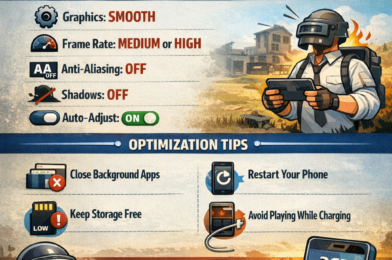
Graphics: Smooth
Set Graphics to Smooth.
This is the most important setting for reducing lag. Smooth graphics lower the load on the device and help maintain better stability during matches.
Frame Rate: Highest Stable Option
Set Frame Rate to the highest option your phone can handle without overheating.
For many low-end devices, Medium or High will be the best choice. A stable frame rate matters more than pushing the phone beyond its limit.
Style: Classic or Colorful
Choose Classic or Colorful.
These styles usually keep visibility clear without putting extra visual strain on the device.
Anti-Aliasing: Off
Turn Anti-Aliasing Off.
This feature makes edges look smoother, but it also adds more load to the GPU. On weak devices, turning it off can improve responsiveness.
Shadows: Off
Turn Shadows Off if that option is available on your device.
Shadows can reduce performance, especially during intense battles or in crowded areas.
Auto-Adjust Graphics: On
Turn Auto-Adjust Graphics On.
This helps the game lower graphics automatically when performance becomes unstable.
Best Optimization Tips for No Lag
Game settings alone are not enough. Your phone also needs basic optimization before you start playing.
Close Background Apps
Before launching the game, close unnecessary apps running in the background. This frees RAM and helps the phone focus on PUBG Mobile.
Turn Off Battery Saver
Battery Saver can reduce phone performance during gaming. According to Android Help, battery-saving features can limit background activity and other system behavior, which may affect game performance.
Restart Your Phone
A quick restart before gaming can clear temporary memory usage and stop hidden apps from slowing the device down.
Keep Enough Free Storage
Phones with nearly full storage often become slower. Try to keep enough free space available so the game can run more smoothly.
Use a Game Booster
If your phone has a built-in gaming mode, use it. On supported Galaxy devices, Samsung Game Booster offers performance-related gaming options that may help improve stability.
Avoid Playing While Charging
Gaming while charging increases heat, and overheating is one of the main reasons low-end phones start lagging after a short time.
Reduce Brightness Slightly
Very high brightness increases battery drain and temperature. A moderate level is usually better for long gaming sessions.
Recommended Settings by RAM Size
For 2GB RAM Phones
- Graphics: Smooth
- Frame Rate: Low or Medium
- Anti-Aliasing: Off
- Shadows: Off
- Auto-Adjust Graphics: On
For 3GB RAM Phones
- Graphics: Smooth
- Frame Rate: Medium or High
- Anti-Aliasing: Off
- Shadows: Off
- Auto-Adjust Graphics: On
For 4GB RAM Phones
- Graphics: Smooth
- Frame Rate: High
- Anti-Aliasing: Off
- Shadows: Off
- Auto-Adjust Graphics: On
These settings are designed to make the game smoother and more playable, not to maximize graphics quality.
Extra Tip
If you run into technical problems, account issues, or update-related errors, you can visit the official PUBG MOBILE Support page for help.
Conclusion
The best PUBG Mobile settings for low-end devices in 2026 are simple: use Smooth graphics, choose the highest stable frame rate, disable extra visual effects, and optimize your phone before each gaming session.
On weaker phones, smooth and stable gameplay is far more important than detailed graphics. If your goal is to reduce lag and play competitively, these settings are the right place to start.