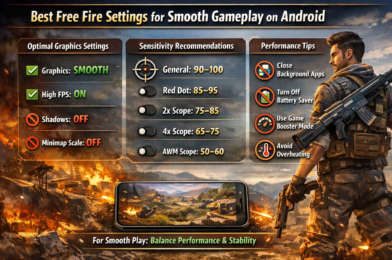
If you are playing Free Fire on an Android device and experiencing lag, frame drops, or delayed controls, the issue is usually not your skill—it is your settings. The good news is that with the right configuration, even low-end phones can run Free Fire smoothly.
In this guide, you will discover the best Free Fire settings for smooth gameplay on Android, along with practical tips to reduce lag and improve performance.
Why Free Fire Lags on Android Devices
Free Fire is optimized for a wide range of devices, but performance issues still happen due to:
- Limited RAM
- Weak processors
- Background apps consuming resources
- High graphics settings
- Overheating during long sessions
To fix this, you need to balance performance and visuals instead of pushing maximum graphics.
Best Free Fire Graphics Settings for Smooth Gameplay
Graphics: Smooth
Set Graphics to Smooth.
This reduces the load on your device and significantly improves performance, especially on low-end phones.
High FPS: On
Turn High FPS On if your device supports it.
Higher FPS makes gameplay feel more responsive and smoother. If your phone starts overheating, you can turn it off.
Minimize (Minimap Auto Scale): Off
Turn Minimize Off.
This prevents unnecessary scaling effects that may slightly impact performance.
Filter: Classic
Use the Classic filter.
Avoid heavy filters that add visual effects and increase GPU usage.
Shadow: Off
Turn Shadows Off.
Shadows look nice but reduce performance, especially during intense fights.
Best Sensitivity Settings (For Smooth Control)
Good sensitivity improves aim and control, especially on lower FPS devices.
Recommended baseline:
- General: 90–100
- Red Dot: 85–95
- 2x Scope: 75–85
- 4x Scope: 65–75
- AWM Scope: 50–60
- Free Look: 60–70
Adjust slightly based on your comfort, but avoid extreme values.
Android Optimization Tips for Better Performance
Close Background Apps
Before launching the game, close all unnecessary apps to free RAM and CPU power.
Turn Off Battery Saver
Battery Saver can reduce device performance. According to Android Help, this mode limits system activity and may affect app performance, including games.
Restart Your Device
Restarting your phone clears temporary memory usage and improves performance stability.
Keep Enough Free Storage
Low storage can slow down your phone. Always keep enough free space for better performance.
Use Game Mode / Game Booster
Many Android phones include gaming optimization tools. For example, Samsung Game Booster provides performance enhancements and system control during gameplay.
Avoid Overheating
- Do not play while charging
- Play in a cool environment
- Take breaks between matches
Heat is one of the biggest causes of lag.
Best Settings by Device Type
Low-End Devices (2GB–3GB RAM)
- Graphics: Smooth
- High FPS: Off
- Shadows: Off
- Filter: Classic
Mid-Range Devices (4GB–6GB RAM)
- Graphics: Standard or Smooth
- High FPS: On
- Shadows: Off
High-End Devices
- Graphics: Ultra
- High FPS: On
- Shadows: Optional
Extra Tip
If you experience bugs, login issues, or performance problems after updates, you can check the official Garena Free Fire Support for troubleshooting and updates.
Conclusion
The best Free Fire settings for smooth gameplay on Android focus on one thing: stability over visuals.
By using Smooth graphics, enabling High FPS (if supported), disabling heavy effects, and optimizing your phone, you can achieve a much smoother and more responsive gaming experience—even on a low-end device.