Call of Duty Mobile is one of the most demanding mobile shooters, and if you are using a low-end device, you may experience lag, frame drops, or delayed controls. The good news is that with the right settings, you can significantly improve performance and achieve smoother gameplay—even on budget phones.
In this guide, you will learn the best COD Mobile settings for low-end devices to get higher FPS and a more stable experience.
Why COD Mobile Lags on Low-End Devices
Low-end smartphones often struggle with COD Mobile due to:
- Limited RAM and weaker processors
- Heavy graphics and detailed environments
- Background apps consuming resources
- Device overheating during long sessions
To fix this, you need to reduce the workload on your device and focus on performance over visuals.
Best COD Mobile Graphics Settings for High FPS
Graphics Quality: Low
Set Graphics Quality to Low.
This reduces the load on your GPU and helps maintain a stable frame rate, especially during intense gunfights.
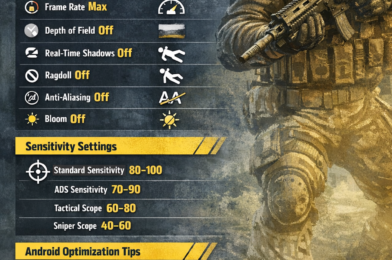
Frame Rate: Max
Set Frame Rate to Max.
Higher frame rates make the game feel smoother and improve reaction time. If your device overheats, you can reduce it slightly.
Depth of Field: Off
Turn Depth of Field Off.
This feature adds blur effects that are unnecessary and reduce performance on weaker devices.
Real-Time Shadows: Off
Disable Real-Time Shadows.
Shadows consume extra resources and can cause FPS drops in crowded areas.
Ragdoll: Off
Turn Ragdoll Off.
This setting controls how character bodies react after elimination. Disabling it helps reduce CPU usage.
Anti-Aliasing: Off
Turn Anti-Aliasing Off.
While it improves visuals, it can reduce performance significantly on low-end phones.
Bloom: Off
Disable Bloom to avoid unnecessary lighting effects that can impact performance.
Best Sensitivity Settings (For Smooth Aim)
Optimized sensitivity helps you control recoil and aim better, especially if your FPS is not very high.
Recommended values:
- Standard Sensitivity: 80–100
- ADS Sensitivity: 70–90
- Tactical Scope: 60–80
- Sniper Scope: 40–60
Adjust gradually until you find what feels comfortable.
Android Optimization Tips for Better Performance
Close Background Apps
Always close unused apps before launching the game. This frees up RAM and improves stability.
Turn Off Battery Saver
Battery Saver can limit device performance. According to Android Help, this mode restricts background activity and system performance, which can affect gaming smoothness.
Restart Your Device Before Playing
Restarting clears temporary processes and improves memory usage.
Keep Enough Free Storage
Low storage can slow down your phone. Make sure you have enough free space for smoother performance.
Use Game Booster
If your phone supports gaming optimization tools, use them. For example, Samsung Game Booster allows performance adjustments that can improve gameplay stability.
Avoid Overheating
- Do not play while charging
- Play in a cool environment
- Take breaks between matches
Heat is one of the main reasons for FPS drops.
Best Settings by RAM Size
2GB–3GB RAM Devices
- Graphics: Low
- Frame Rate: Medium or High
- Shadows: Off
- Anti-Aliasing: Off
4GB RAM Devices
- Graphics: Low
- Frame Rate: High or Max
- Shadows: Off
6GB+ RAM Devices
- Graphics: Medium
- Frame Rate: Max
- Shadows: Optional
Extra Tip
If you face bugs, update issues, or performance problems, you can visit the official COD Mobile Support page for troubleshooting and updates.
Conclusion
The best COD Mobile settings for low-end devices focus on maximizing FPS and minimizing unnecessary graphics load.
By using low graphics, high frame rate, disabling heavy effects, and optimizing your device, you can achieve smoother and more responsive gameplay—even on older Android phones.
Performance always wins over visuals, especially in competitive games like COD Mobile