How to Fix Overheating While Gaming on Android

Overheating is one of the biggest problems mobile gamers face. When your phone gets too hot, performance drops, FPS becomes unstable, and your gaming experience gets worse.

The good news is that overheating can be fixed easily with the right settings and habits. In this guide, you will learn how to fix overheating while gaming on Android and keep your device cool and stable.


Why Your Phone Overheats While Gaming

Smartphones generate heat when running heavy tasks like gaming. On low-end or even mid-range devices, this heat builds up quickly.

Common causes include:

  • High graphics settings
  • Playing while charging
  • Poor ventilation
  • Background apps running
  • High screen brightness
  • Long gaming sessions

When your phone overheats, it automatically reduces performance (thermal throttling), which causes lag.


1. Lower In-Game Graphics Settings

The easiest way to reduce heat is to lower graphics.

Recommended Settings:

  • Graphics: Low or Smooth
  • Frame Rate: Medium or High (stable only)
  • Shadows: Off
  • Effects: Low

Lower settings reduce CPU and GPU usage, which directly reduces heat.


2. Never Play While Charging

Playing while charging is one of the main causes of overheating.

  • Charging generates heat
  • Gaming generates heat
    👉 Combined = extreme temperature

Avoid this completely if you want stable performance.


3. Close Background Apps

Apps running in the background consume CPU and RAM.

Before gaming:

  • Close all apps
  • Clear recent apps

This reduces workload and heat.


4. Turn Off Battery Saver

Battery Saver can affect performance and efficiency. According to Android Help, it limits system activity, which may impact app performance.

Turning it off helps your device run more efficiently during gaming.


5. Reduce Screen Brightness

High brightness increases heat and battery usage.

  • Keep brightness at 40–60%
  • Avoid max brightness unless necessary

This helps keep your phone cooler during long sessions.


6. Take Breaks Between Matches

Continuous gaming causes heat buildup.

👉 Best practice:

  • Play 2–3 matches
  • Take a short break

This allows your phone to cool down naturally.


7. Remove Phone Case While Gaming

Phone cases trap heat inside the device.

  • Remove thick cases during gaming
  • Allow better airflow

This can noticeably reduce temperature.


8. Play in a Cool Environment

Your surroundings matter.

Avoid:

  • Hot rooms
  • Direct sunlight

Play in:

  • Cool indoor environments
  • Well-ventilated areas

9. Use Game Mode or Game Booster

Some phones have built-in gaming tools.

For example, Samsung Game Booster helps manage performance and optimize system behavior during gameplay.


10. Keep Your Phone Updated

System updates often improve:

  • Thermal management
  • Performance efficiency
  • Bug fixes

Always keep your Android system updated.


Common Mistakes to Avoid

  • Playing while charging
  • Using max graphics on weak devices
  • Gaming for long periods without breaks
  • Keeping apps running in background
  • Using thick phone cases

Extra Tip

If your phone overheats even with low settings, try reducing frame rate instead of graphics. A stable frame rate generates less heat than pushing maximum FPS.


Conclusion

Overheating while gaming on Android is common, but easy to fix.

By lowering graphics, avoiding charging while playing, closing background apps, and keeping your device cool, you can significantly reduce heat and enjoy smoother gameplay.

Remember: a cooler phone = better performance + longer gaming sessions.
How to Boost Gaming Performance on Low-End Android Devices

Gaming on a low-end Android device can be frustrating when you experience lag, frame drops, and slow response times. However, with the right optimizations, you can significantly boost performance and enjoy smoother gameplay—even on budget phones.

In this guide, you will learn how to boost gaming performance on low-end Android devices using simple and effective methods.


Why Low-End Devices Struggle With Games

Low-end phones often have:

  • Limited RAM
  • Entry-level processors
  • Weak GPUs
  • Basic cooling systems

These limitations make it harder to run modern games smoothly, especially with high graphics settings.


1. Lower In-Game Graphics Settings

The most important step is to reduce graphics.

Recommended Settings:

  • Graphics: Low or Smooth
  • Frame Rate: Medium or High (if stable)
  • Shadows: Off
  • Anti-Aliasing: Off
  • Effects: Low

Lower settings reduce the load on your device and improve FPS stability.


2. Close Background Apps

Background apps consume RAM and CPU power.

Before gaming:

  • Close all unused apps
  • Clear recent apps

This frees up resources for better performance.


3. Turn Off Battery Saver

Battery Saver can limit performance. According to Android Help, this mode reduces system activity and may affect app performance, including games.

Disabling it allows your device to use full performance power.


4. Restart Your Device

Restarting your phone:

  • Clears temporary memory
  • Stops background processes
  • Improves responsiveness

This simple step can noticeably improve performance.


5. Free Up Storage Space

Low storage slows down your device.

What to do:

  • Delete unused apps
  • Clear cache
  • Remove large files

Keeping enough free space helps your phone run smoothly.


6. Use Game Booster or Game Mode

Many Android phones include gaming tools.

For example, Samsung Game Booster provides performance optimization and background control during gameplay.


7. Prevent Overheating

Heat is one of the biggest causes of lag.

To reduce overheating:

  • Do not play while charging
  • Play in a cool environment
  • Take breaks between sessions

When your phone overheats, it reduces performance automatically.


8. Lower Screen Brightness

High brightness increases heat and battery usage. Lowering it slightly can help maintain stable performance.


9. Update Your System and Games

Updates include performance improvements and bug fixes. Always keep your system up to date.


10. Reduce Background Data Usage

Apps using internet in the background can affect performance. Managing this through Android settings can help, as explained in Android Help.


Common Mistakes to Avoid

  • Using high graphics on weak devices
  • Playing while charging
  • Keeping many apps open
  • Ignoring overheating
  • Not optimizing system settings

Extra Tip

If you face crashes or performance issues in specific games, you can visit official support pages like PUBG MOBILE Support for troubleshooting.


Conclusion

Boosting gaming performance on low-end Android devices is all about reducing system load and optimizing resources.

By lowering graphics, closing background apps, preventing overheating, and using built-in tools, you can achieve smoother gameplay—even on older devices.

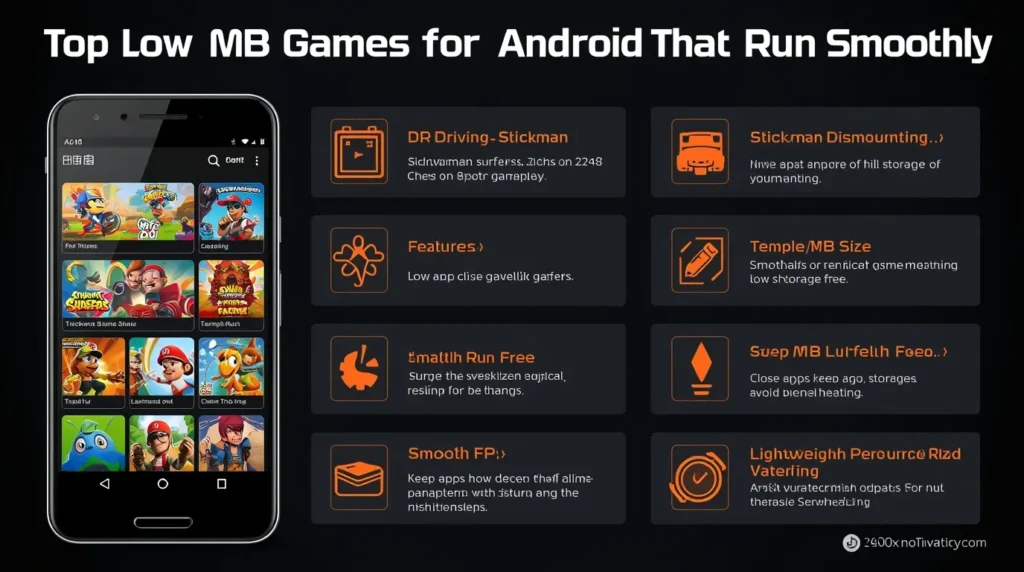
Top Low MB Games for Android That Run Smoothly

If you have limited storage or a low-end Android phone, downloading heavy games can quickly slow down your device. The good news is that there are many low MB Android games that are lightweight, fun, and run smoothly even on weak devices.

In this guide, you will discover the top low MB games for Android that offer smooth gameplay without lag.


Why Choose Low MB Games?

Low-size games are perfect for budget phones because they:

  • Take less storage space
  • Run smoothly on low RAM devices
  • Load faster
  • Reduce lag and overheating

They are ideal for phones with 2GB–3GB RAM or limited storage.


Top Low MB Games for Android


1. Dr. Driving (Less than 15MB)

A lightweight driving simulator that runs smoothly on almost any device.

  • Very small size
  • Simple controls
  • No lag gameplay

2. Stickman Dismounting (Around 20MB)

A fun physics-based game with simple mechanics.

  • Lightweight
  • Smooth performance
  • Works on very weak devices

3. 2048 Puzzle Game (Less than 10MB)

A classic puzzle game that is extremely lightweight.

  • Offline gameplay
  • Minimal storage usage
  • Perfect for casual gaming

4. Chess (Offline) (Around 15MB)

4. Chess (Offline) (Around 15MB)

A simple chess game that runs smoothly on all devices.

  • Offline mode
  • No heavy graphics
  • Great for strategy lovers

5. Subway Surfers (Optimized Version)

Although slightly larger, it is highly optimized and runs well on low-end devices.

  • Smooth gameplay
  • Lightweight compared to modern games
  • No lag experience

6. Temple Run (Low Size Version)

A classic endless runner that works perfectly on weak phones.

  • Fast loading
  • Smooth controls
  • Low system requirements

7. Stack (Less than 30MB)

A simple arcade game where you stack blocks.

  • Minimal graphics
  • Very smooth performance
  • Addictive gameplay

8. Hill Climb Racing (Around 50MB)

A lightweight driving game that runs smoothly even on older devices.

  • Offline gameplay
  • Low hardware requirements
  • Stable performance

Best Settings for Smooth Gameplay

Even lightweight games perform better with proper settings.

Recommended:

  • Close background apps
  • Keep storage space available
  • Avoid overheating

Tips to Keep Games Running Smoothly

Close Background Apps

Free up RAM before launching games.


Turn Off Battery Saver

Battery Saver can reduce performance. According to Android Help, it limits system activity and may affect app performance.


Avoid Overheating

  • Do not play while charging
  • Take breaks
  • Keep your phone cool

Keep Storage Free

Low storage can slow down your phone.


Common Mistakes to Avoid

  • Installing too many games at once
  • Ignoring storage limits
  • Running apps in background
  • Playing while charging

Extra Tip

If your phone becomes slow, restart it before gaming. This clears memory and improves performance instantly.


Conclusion

Low MB Android games are perfect for smooth gaming on weak devices. They take less space, run faster, and provide a lag-free experience.

By choosing lightweight games and optimizing your phone, you can enjoy gaming without needing a high-end device.

Best Tools to Improve Mobile Gaming Performance

Mobile gaming performance depends not only on your device but also on how well it is optimized. If you experience lag, frame drops, or overheating, using the right tools can significantly improve your gaming experience.

In this guide, you will discover the best tools to improve mobile gaming performance and achieve smoother gameplay on Android devices.


Why Mobile Gaming Performance Drops

Before using any tools, it is important to understand the main causes of poor performance:

  • Limited RAM and weak processors
  • Background apps consuming resources
  • Overheating
  • High graphics settings
  • Poor system optimization

Performance tools help reduce system load and improve efficiency.


Best Tools to Improve Mobile Gaming Performance


1. Game Booster Tools

Game booster apps are designed to optimize your device before and during gameplay.

  • Clear RAM
  • Stop background processes
  • Improve system performance

For example, Samsung Game Booster provides built-in optimization features on supported devices.


2. GFX Tools (Graphics Optimization)

GFX tools allow you to manually control game graphics beyond default settings.

  • Lower resolution
  • Adjust FPS
  • Disable heavy effects

⚠️ Use only trusted tools and supported games.


3. Cleaning Apps

Cleaning apps help remove unnecessary files and free up storage.

Popular benefits:

  • Clear cache
  • Remove junk files
  • Improve system speed

4. Game Mode Apps

Game mode apps block interruptions and improve performance.

  • Disable notifications
  • Optimize background activity
  • Focus system resources on the game

According to Android Help, limiting background processes can improve app performance, including gaming.


5. Network Optimization Tools

Some tools help improve connection stability during online gaming.

  • Reduce background data usage
  • Stabilize network performance
  • Improve ping

6. System Monitoring Tools

These tools help you monitor performance in real time.

  • CPU usage
  • RAM usage
  • Temperature

This helps you understand what is causing lag.


Best Settings to Use With These Tools

Using tools alone is not enough. Combine them with proper in-game settings:

  • Graphics: Low or Smooth
  • Frame Rate: High (stable only)
  • Shadows: Off
  • Effects: Low

This ensures better results.


Best Tips for Maximum Performance

1. Use Trusted Tools Only

Avoid unknown or unsafe apps that may harm your device.


2. Do Not Overload Your Phone

Using too many tools at the same time can reduce performance.


3. Keep Your Device Cool

  • Avoid playing while charging
  • Take breaks
  • Play in a cool environment

4. Restart Your Phone Regularly

Clears memory and improves system responsiveness.


Common Mistakes to Avoid

  • Installing too many optimization apps
  • Using fake or unsafe tools
  • Ignoring device overheating
  • Relying only on tools without adjusting settings

Extra Tip

The biggest performance boost usually comes from lowering graphics settings, not from apps. Always combine tools with proper game settings.


Conclusion

Using the right tools can significantly improve mobile gaming performance, especially on low-end Android devices.

Game boosters, cleaning apps, and system optimization tools can help reduce lag and improve stability. However, the best results come from combining these tools with proper settings and good device management.

PUBG Mobile Graphics Settings for 2GB RAM Devices

Playing PUBG Mobile on a 2GB RAM device can be challenging due to frequent lag, frame drops, and overheating. However, with the right graphics settings and proper optimization, you can still enjoy a smoother and more stable gaming experience.

In this guide, you will find the best PUBG Mobile graphics settings specifically for 2GB RAM devices, along with practical tips to reduce lag and improve performance.


Why PUBG Mobile Struggles on 2GB RAM Devices

Devices with 2GB RAM have limited resources, which makes it difficult to handle heavy games like PUBG Mobile. Common issues include:

  • Low and unstable FPS
  • Lag during fights
  • Delayed touch response
  • Overheating
  • App crashes

To fix this, you need to minimize the workload on your device by using lighter settings.


Best PUBG Mobile Graphics Settings for 2GB RAM

These settings are optimized for maximum stability and minimum lag.


Graphics: Smooth

Set Graphics to Smooth.

This is the most important setting. It reduces visual details and helps your device maintain a more stable frame rate.


Frame Rate: Medium (or Low if Needed)

Set Frame Rate to Medium.

If your device still lags, switch to Low. Stability is more important than higher FPS on 2GB devices.


Style: Classic

Choose Classic style.

It keeps visuals simple and avoids unnecessary effects.


Anti-Aliasing: Off

Turn Anti-Aliasing Off.

This feature increases GPU load and should be disabled on low-end devices.


Shadows: Off

Disable Shadows completely.

Shadows can significantly reduce performance, especially during combat.


Auto-Adjust Graphics: On

Turn Auto-Adjust Graphics On.

This allows the game to lower settings automatically when performance drops.


Best Optimization Tips for 2GB RAM Phones

Close Background Apps

Before launching PUBG Mobile, close all unnecessary apps to free up RAM.


Turn Off Battery Saver

Battery Saver can reduce device performance. According to Android Help, this mode limits system activity and may affect app performance, including games.


Restart Your Phone Before Playing

Restarting clears memory and improves system responsiveness.


Keep Storage Free

Low storage can slow down your phone. Always keep enough free space available.


Avoid Overheating

  • Do not play while charging
  • Play in a cool place
  • Take breaks between matches

Heat is one of the biggest causes of lag.


Use Lite Resources (If Available)

Avoid downloading unnecessary HD resource packs inside the game to reduce load on your device.


Extra Tip

If you face issues such as crashes, login errors, or update problems, you can check the official PUBG MOBILE Support for troubleshooting and updates.


Common Mistakes to Avoid

  • Using HD or HDR graphics on 2GB devices
  • Setting frame rate too high
  • Playing with full storage
  • Keeping many apps running in the background
  • Ignoring overheating

Conclusion

The best PUBG Mobile graphics settings for 2GB RAM devices focus on stability, not visuals.

By using Smooth graphics, keeping frame rate moderate, disabling heavy effects, and optimizing your phone, you can significantly reduce lag and enjoy a more playable experience.

Even on a 2GB RAM device, the right settings can make a big difference in performance.

Best Mobile Games for Weak Phones (Low-End Devices)

If you are using a weak or low-end smartphone, you might think that gaming is not an option. Many modern mobile games require powerful hardware, which leads to lag, crashes, and overheating on budget devices.

However, there are still many great mobile games that run smoothly on low-end phones. In this guide, you will discover the best mobile games for weak phones that offer smooth gameplay without lag.


Why Weak Phones Struggle With Games

Low-end devices usually have:

  • Limited RAM
  • Basic processors
  • Weak GPUs
  • Less efficient cooling

Because of this, heavy games can cause:

  • Frame drops
  • Lag and stuttering
  • Overheating
  • Slow loading times

That is why choosing lightweight and optimized games is essential.


Best Mobile Games for Low-End Devices

Mobile Games for Low-End Devices

1. Free Fire

Free Fire is one of the best battle royale games optimized for low-end devices.

  • Smooth performance
  • Small match size
  • Low system requirements

If you face issues, you can check the official Garena Free Fire Support for help and updates.


2. Subway Surfers

A classic endless runner that works on almost any phone.

  • Lightweight
  • Offline mode available
  • Very smooth gameplay

3. Clash of Clans

A popular strategy game that runs well even on weak devices.

  • Online gameplay
  • Low hardware requirements
  • Stable performance

4. Shadow Fight 2

A fighting game with simple graphics and smooth animations.

  • Offline gameplay
  • Lightweight design
  • Good performance

5. Asphalt Nitro

A lighter version of Asphalt racing games.

  • Small size
  • Smooth racing experience
  • Designed for low-end phones

6. Among Us

A simple multiplayer game with very low system requirements.

  • Lightweight
  • Easy to run
  • Fun gameplay

7. Temple Run 2

A fast-paced runner game that performs well on older devices.

  • Optimized for low-end phones
  • Offline gameplay
  • Smooth controls

8. Hill Climb Racing

A physics-based driving game that works on almost any device.

  • Very lightweight
  • Simple gameplay
  • No lag

Best Settings for Smooth Gameplay

Even lightweight games need proper settings for the best performance.

Recommended:

  • Graphics: Low
  • Frame Rate: Medium or High (stable only)
  • Effects: Low

Tips to Reduce Lag on Weak Phones

Mobile Games for Low-End Devices

Close Background Apps

Free up RAM before launching games.


Turn Off Battery Saver

Battery Saver can limit performance. According to Android Help, it reduces system activity and may affect app performance.


Avoid Overheating

  • Do not play while charging
  • Take breaks
  • Keep your phone cool

Keep Storage Free

Low storage slows down your phone and causes lag.


Common Mistakes to Avoid

  • Installing heavy games not optimized for low-end devices
  • Using high graphics settings
  • Playing while charging
  • Keeping many apps open

Extra Tip

If a game feels laggy, try lowering the frame rate instead of increasing it. Stability is more important than high FPS on weak devices.


Conclusion

You do not need a powerful phone to enjoy gaming. With the right game choices and proper optimization, even weak Android devices can run games smoothly.

Focus on lightweight games, adjust your settings, and keep your device optimized for the best experience.

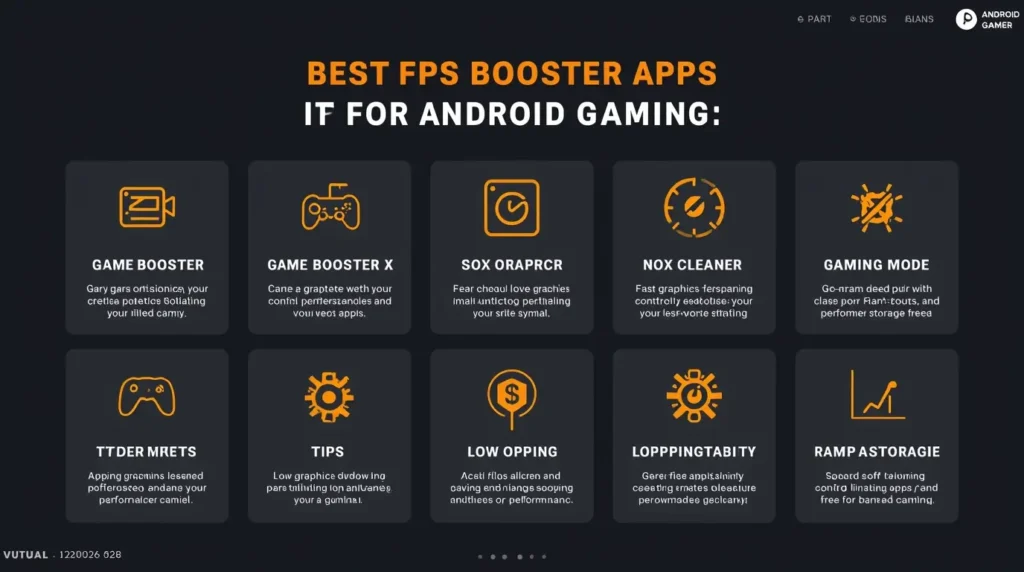
Best FPS Booster Apps for Android Gaming

Low FPS is one of the biggest problems in mobile gaming. It causes lag, stuttering, and slow response, making it harder to compete in games like PUBG Mobile, Free Fire, and COD Mobile.

The good news is that FPS booster apps can help improve performance by optimizing your device, freeing up RAM, and stabilizing gameplay. In this guide, you will discover the best FPS booster apps for Android gaming in 2026.


Why FPS Drops on Android Devices

Before using booster apps, it is important to understand why FPS drops:

  • Limited RAM and weak CPU
  • Background apps consuming resources
  • Overheating
  • High graphics settings
  • Poor system optimization

FPS booster apps work by reducing system load and improving efficiency.


Best FPS Booster Apps for Android Gaming


1. Game Booster (Built-in Tools)

Many Android phones come with built-in FPS optimization tools.

For example, Samsung Game Booster helps improve performance, manage background apps, and stabilize gameplay.

  • No installation required
  • Optimized for your device
  • Best performance results

2. Game Booster X

A lightweight app designed to improve FPS on low-end devices.

  • One-tap boost
  • RAM cleaning
  • Background process control

3. GFX Tool (For Supported Games)

GFX tools allow advanced control over graphics settings.

  • Lower resolution
  • Unlock higher FPS
  • Disable heavy effects

⚠️ Use only trusted versions and supported games.


4. Nox Cleaner

A powerful cleaning app that helps improve performance.

  • Clears junk files
  • Boosts RAM
  • Improves system speed

5. CCleaner

One of the most trusted optimization apps.

  • Frees storage
  • Clears cache
  • Improves responsiveness

6. Gaming Mode Apps

Gaming Mode Apps

Gaming mode apps optimize system performance and reduce interruptions.

According to Android Help, limiting background activity can improve app performance, including gaming.


Best Settings to Combine With FPS Booster Apps

Using apps alone is not enough. Combine them with proper settings:

  • Graphics: Low or Smooth
  • Frame Rate: High or Max (stable only)
  • Shadows: Off
  • Effects: Low

This ensures maximum FPS improvement.


Best Tips for Higher FPS

1. Use One Booster App Only

Using multiple apps can reduce performance instead of improving it.


2. Close Apps Before Boosting

Manual cleaning + booster app gives better results.


3. Prevent Overheating

  • Do not play while charging
  • Take breaks
  • Keep your phone cool

4. Keep Storage Free

Low storage can reduce FPS and cause stuttering.


Common Mistakes to Avoid

  • Installing too many booster apps
  • Using untrusted tools
  • Ignoring overheating
  • Relying only on apps without optimizing settings

Extra Tip

The biggest FPS improvement usually comes from lowering graphics settings, not from apps. Always prioritize stability over visuals.


Conclusion

FPS booster apps can help improve gaming performance on Android, especially on low-end devices. However, they work best when combined with proper settings and good device management.

Choose trusted apps, optimize your system, and focus on stable performance for the best gaming experience.

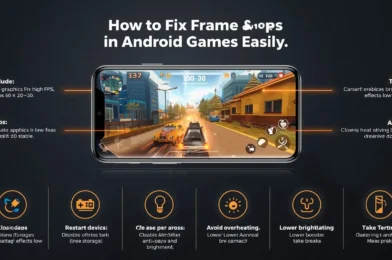
How to Fix Frame Drops in Android Games Easily

Frame drops are one of the most annoying issues in mobile gaming. Even if your game runs smoothly at times, sudden drops in FPS can ruin your aim, delay your reactions, and make gameplay inconsistent.

The good news is that most frame drop issues on Android can be fixed بسهولة with a few simple adjustments.


What Are Frame Drops?

Frame drops happen when your game cannot maintain a stable FPS (frames per second).

For example:

  • Game runs at 60 FPS → smooth
  • Suddenly drops to 20–30 FPS → lag and stutter

This usually happens when your device is overloaded or overheated.


Main Causes of Frame Drops

  • High graphics settings
  • Overheating
  • Background apps consuming RAM
  • Low storage space
  • Battery saver limiting performance
  • Poor optimization

Fixing frame drops is about reducing load and stabilizing performance.


1. Lower Graphics Settings

The first and most important step.

Recommended:

  • Graphics: Low or Smooth
  • Frame Rate: High (if stable)
  • Shadows: Off
  • Anti-Aliasing: Off
  • Effects: Low

Lower graphics reduce GPU pressure and help maintain stable FPS.


2. Close Background Apps

Background apps use RAM and CPU power.

Before playing:

  • Close all apps
  • Clear recent apps

This gives your game maximum resources.


3. Turn Off Battery Saver

Battery Saver can reduce performance. According to Android Help, this mode limits system activity and may affect app performance, including games.

Turning it off allows your device to run at full performance.


4. Restart Your Phone

Restarting:

  • Clears memory
  • Stops hidden processes
  • Improves system stability

Do this before gaming sessions.


5. Prevent Overheating

Heat is one of the biggest causes of frame drops.

To avoid overheating:

  • Do not play while charging
  • Play in a cool environment
  • Take breaks

When your phone overheats, it reduces performance automatically.


6. Free Up Storage Space

Low storage slows your phone and causes stuttering.

Tips:

  • Delete unused apps
  • Clear cache
  • Remove large files

Keep enough free space for smooth performance.


7. Use Game Booster

If your phone supports it, use gaming tools.

For example, Samsung Game Booster helps optimize performance and control background activity during gameplay.


8. Reduce Screen Brightness

High brightness increases heat and battery usage. Lowering it slightly helps maintain performance.


9. Keep Your System Updated

Updates improve performance and fix bugs. Always keep your Android system and games updated.


10. Avoid Playing for Too Long

Long sessions increase heat and reduce performance over time. Take short breaks between matches.


Common Mistakes to Avoid

  • Using high graphics on weak devices
  • Playing while charging
  • Keeping many apps open
  • Ignoring overheating
  • Not optimizing settings

Extra Tip

If you experience crashes or performance issues, you can check official support pages like PUBG MOBILE Support for troubleshooting and updates.


Conclusion

Fixing frame drops in Android games is simple when you focus on the right things: lower graphics, free resources, prevent overheating, and optimize your device.

With these steps, you can achieve smoother gameplay and more stable FPS—even on low-end phones.

Best Sensitivity Settings for Free Fire Headshots (2026)

Landing consistent headshots in Free Fire is not just about skill—it is about having the right sensitivity settings. With a properly tuned setup, you can improve your aim, reduce drag delay, and increase your chances of hitting accurate headshots in every fight.

In this guide, you will learn the best Free Fire sensitivity settings for headshots in 2026, along with practical tips to fine-tune them for your device.

Why Sensitivity Matters for Headshots

Sensitivity controls how quickly your aim moves when you swipe. If it is too high, your aim becomes unstable. If it is too low, you cannot react fast enough.

The goal is to achieve:

  • Fast target tracking
  • Smooth drag control
  • Precise crosshair placement

These are essential for consistent headshots, especially in close and mid-range fights.

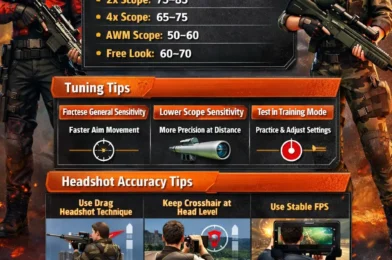
Best Free Fire Sensitivity Settings for Headshots

Here is a balanced setup that works well for most Android devices:

  • General: 90–100
  • Red Dot: 85–95
  • 2x Scope: 75–85
  • 4x Scope: 65–75
  • AWM Scope: 50–60
  • Free Look: 60–70

These values provide a good mix of speed and control, allowing smoother head tracking and better recoil handling.

How to Adjust Sensitivity for Better Headshots

Increase General Sensitivity

Higher General sensitivity helps you drag the aim quickly toward the enemy’s head.

Lower Scope Sensitivity Gradually

Scopes require more control. Slightly lower sensitivity helps you stabilize your aim when shooting at distance.

Test in Training Mode

Do not copy settings blindly. Always test your setup and adjust step by step.

Best Tips to Improve Headshot Accuracy

Use Drag Headshot Technique

Drag your aim slightly upward while shooting. This technique increases the chance of hitting the head instead of the body.

Keep Crosshair at Head Level

Always aim at head height while moving around the map. This reduces the need for big adjustments during fights.

Use Stable Device Performance

Low FPS makes aiming harder. For better performance, follow basic Android optimization practices from Android Help, which explains how system settings can affect app performance.

Practice With the Same Settings

Consistency is key. Avoid changing sensitivity every day.

Choose the Right Weapons

Some weapons are easier for headshots:

  • MP40 (close range)
  • M1014 (shotgun fights)
  • SCAR (mid-range control)

Sensitivity Based on Device Type

Low-End Devices

  • Use slightly higher General sensitivity
  • Keep graphics low for stable FPS

Mid-Range Devices

  • Balanced sensitivity works best
  • Combine smooth performance with control

High-End Devices

  • You can use more aggressive (higher) sensitivity
  • Better FPS allows faster reactions

Common Mistakes to Avoid

  • Using extremely high sensitivity (causes shaky aim)
  • Using very low sensitivity (slow reaction)
  • Changing settings too frequently
  • Ignoring FPS and device performance

Extra Tip

If you face technical issues, login problems, or game errors, you can check the official Garena Free Fire Support for updates and troubleshooting.

Conclusion

The best sensitivity settings for Free Fire headshots in 2026 are all about balance. You need enough speed to react quickly and enough control to stay accurate.

Start with the recommended settings in this guide, adjust them based on your device, and practice consistently. Over time, your aim will improve, and headshots will become much easier.