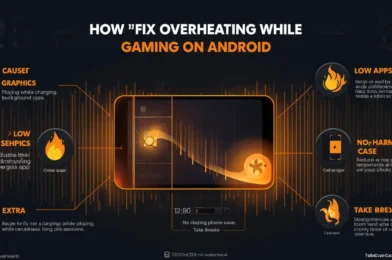
How to Fix Overheating While Gaming on Android

Overheating is one of the biggest problems mobile gamers face. When your phone gets too hot, performance drops, FPS becomes unstable, and your gaming experience gets worse.

The good news is that overheating can be fixed easily with the right settings and habits. In this guide, you will learn how to fix overheating while gaming on Android and keep your device cool and stable.


Why Your Phone Overheats While Gaming

Smartphones generate heat when running heavy tasks like gaming. On low-end or even mid-range devices, this heat builds up quickly.

Common causes include:

  • High graphics settings
  • Playing while charging
  • Poor ventilation
  • Background apps running
  • High screen brightness
  • Long gaming sessions

When your phone overheats, it automatically reduces performance (thermal throttling), which causes lag.


1. Lower In-Game Graphics Settings

The easiest way to reduce heat is to lower graphics.

Recommended Settings:

  • Graphics: Low or Smooth
  • Frame Rate: Medium or High (stable only)
  • Shadows: Off
  • Effects: Low

Lower settings reduce CPU and GPU usage, which directly reduces heat.


2. Never Play While Charging

Playing while charging is one of the main causes of overheating.

  • Charging generates heat
  • Gaming generates heat
    👉 Combined = extreme temperature

Avoid this completely if you want stable performance.


3. Close Background Apps

Apps running in the background consume CPU and RAM.

Before gaming:

  • Close all apps
  • Clear recent apps

This reduces workload and heat.


4. Turn Off Battery Saver

Battery Saver can affect performance and efficiency. According to Android Help, it limits system activity, which may impact app performance.

Turning it off helps your device run more efficiently during gaming.


5. Reduce Screen Brightness

High brightness increases heat and battery usage.

  • Keep brightness at 40–60%
  • Avoid max brightness unless necessary

This helps keep your phone cooler during long sessions.


6. Take Breaks Between Matches

Continuous gaming causes heat buildup.

👉 Best practice:

  • Play 2–3 matches
  • Take a short break

This allows your phone to cool down naturally.


7. Remove Phone Case While Gaming

Phone cases trap heat inside the device.

  • Remove thick cases during gaming
  • Allow better airflow

This can noticeably reduce temperature.


8. Play in a Cool Environment

Your surroundings matter.

Avoid:

  • Hot rooms
  • Direct sunlight

Play in:

  • Cool indoor environments
  • Well-ventilated areas

9. Use Game Mode or Game Booster

Some phones have built-in gaming tools.

For example, Samsung Game Booster helps manage performance and optimize system behavior during gameplay.


10. Keep Your Phone Updated

System updates often improve:

  • Thermal management
  • Performance efficiency
  • Bug fixes

Always keep your Android system updated.


Common Mistakes to Avoid

  • Playing while charging
  • Using max graphics on weak devices
  • Gaming for long periods without breaks
  • Keeping apps running in background
  • Using thick phone cases

Extra Tip

If your phone overheats even with low settings, try reducing frame rate instead of graphics. A stable frame rate generates less heat than pushing maximum FPS.


Conclusion

Overheating while gaming on Android is common, but easy to fix.

By lowering graphics, avoiding charging while playing, closing background apps, and keeping your device cool, you can significantly reduce heat and enjoy smoother gameplay.

Remember: a cooler phone = better performance + longer gaming sessions.
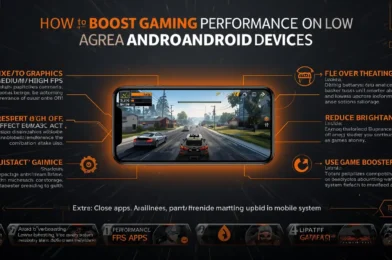
How to Boost Gaming Performance on Low-End Android Devices

Gaming on a low-end Android device can be frustrating when you experience lag, frame drops, and slow response times. However, with the right optimizations, you can significantly boost performance and enjoy smoother gameplay—even on budget phones.

In this guide, you will learn how to boost gaming performance on low-end Android devices using simple and effective methods.


Why Low-End Devices Struggle With Games

Low-end phones often have:

  • Limited RAM
  • Entry-level processors
  • Weak GPUs
  • Basic cooling systems

These limitations make it harder to run modern games smoothly, especially with high graphics settings.


1. Lower In-Game Graphics Settings

The most important step is to reduce graphics.

Recommended Settings:

  • Graphics: Low or Smooth
  • Frame Rate: Medium or High (if stable)
  • Shadows: Off
  • Anti-Aliasing: Off
  • Effects: Low

Lower settings reduce the load on your device and improve FPS stability.


2. Close Background Apps

Background apps consume RAM and CPU power.

Before gaming:

  • Close all unused apps
  • Clear recent apps

This frees up resources for better performance.


3. Turn Off Battery Saver

Battery Saver can limit performance. According to Android Help, this mode reduces system activity and may affect app performance, including games.

Disabling it allows your device to use full performance power.


4. Restart Your Device

Restarting your phone:

  • Clears temporary memory
  • Stops background processes
  • Improves responsiveness

This simple step can noticeably improve performance.


5. Free Up Storage Space

Low storage slows down your device.

What to do:

  • Delete unused apps
  • Clear cache
  • Remove large files

Keeping enough free space helps your phone run smoothly.


6. Use Game Booster or Game Mode

Many Android phones include gaming tools.

For example, Samsung Game Booster provides performance optimization and background control during gameplay.


7. Prevent Overheating

Heat is one of the biggest causes of lag.

To reduce overheating:

  • Do not play while charging
  • Play in a cool environment
  • Take breaks between sessions

When your phone overheats, it reduces performance automatically.


8. Lower Screen Brightness

High brightness increases heat and battery usage. Lowering it slightly can help maintain stable performance.


9. Update Your System and Games

Updates include performance improvements and bug fixes. Always keep your system up to date.


10. Reduce Background Data Usage

Apps using internet in the background can affect performance. Managing this through Android settings can help, as explained in Android Help.


Common Mistakes to Avoid

  • Using high graphics on weak devices
  • Playing while charging
  • Keeping many apps open
  • Ignoring overheating
  • Not optimizing system settings

Extra Tip

If you face crashes or performance issues in specific games, you can visit official support pages like PUBG MOBILE Support for troubleshooting.


Conclusion

Boosting gaming performance on low-end Android devices is all about reducing system load and optimizing resources.

By lowering graphics, closing background apps, preventing overheating, and using built-in tools, you can achieve smoother gameplay—even on older devices.