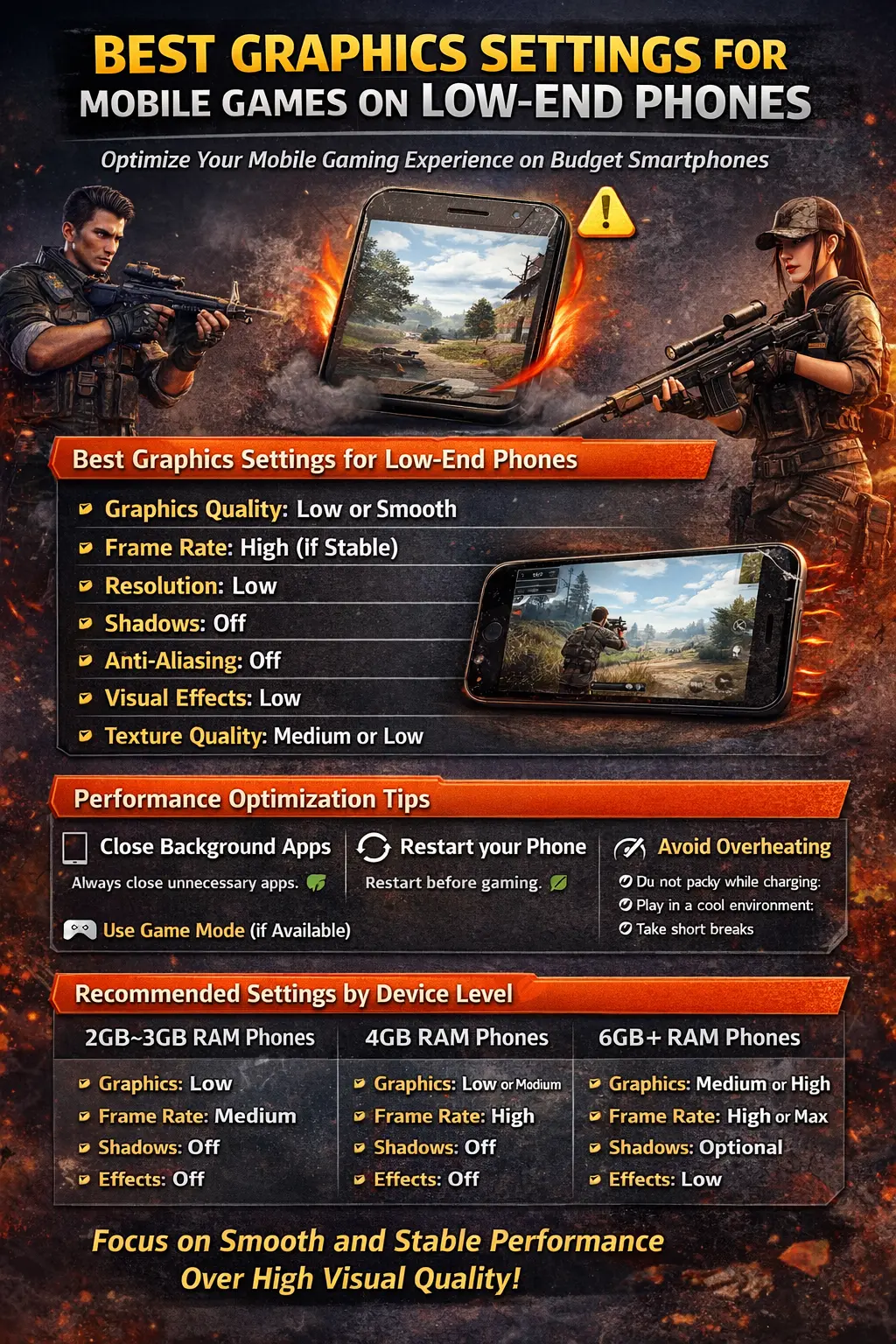
Playing mobile games on a low-end phone can be frustrating when you experience lag, frame drops, and overheating. However, with the right graphics settings and a few optimizations, you can significantly improve performance and enjoy smoother gameplay—even on budget devices.
In this guide, you will learn the best graphics settings for mobile games on low-end phones, along with practical tips to boost performance and reduce lag.
Why Low-End Phones Struggle With Games
Low-end devices usually have:
- Limited RAM
- Entry-level processors
- Weak GPUs
- Basic cooling systems
When games run on high graphics settings, these components get overloaded, leading to:
- FPS drops
- Stuttering
- Overheating
- Battery drain
The solution is to reduce visual load and focus on stable performance.
Best Graphics Settings for Low-End Phones
These settings apply to most mobile games like PUBG Mobile, Free Fire, COD Mobile, and others.
Graphics Quality: Low or Smooth
Always set Graphics Quality to Low or Smooth.
This reduces texture detail and rendering load, which helps maintain stable FPS.
Frame Rate: High (If Stable)
Set Frame Rate to High or the highest stable option.
Higher FPS improves smoothness and responsiveness, but if your phone overheats, reduce it slightly.
Resolution: Low
Lower resolution reduces the number of pixels your phone needs to render, which improves performance.
Shadows: Off
Turn Shadows Off.
Shadows consume GPU resources and often cause frame drops during gameplay.
Anti-Aliasing: Off
Disable Anti-Aliasing.
While it improves visuals, it significantly impacts performance on weaker devices.
Visual Effects: Low
Set effects like reflections, bloom, and motion blur to Low or Off.
Texture Quality: Medium or Low
Lower texture quality reduces memory usage and helps avoid stuttering.
Best Performance Optimization Tips
Graphics settings alone are not enough. You also need to optimize your phone.
Close Background Apps
Always close unnecessary apps before gaming. This frees RAM and CPU power.
Turn Off Battery Saver
Battery Saver can limit performance. According to Android Help, this mode reduces system activity and can affect app performance, including games.
Restart Your Phone Before Gaming
Restarting clears temporary memory and improves system responsiveness.
Keep Enough Free Storage
Low storage slows down your device. Always keep free space available for better performance.
Use Built-in Game Mode
Many Android devices include gaming tools. For example, Samsung Game Booster allows performance tuning and background optimization during gameplay.
Avoid Overheating
- Do not play while charging
- Play in a cool environment
- Take short breaks
Heat is one of the main causes of lag.
Update Your System and Games
Keep your Android system and games updated to ensure better optimization and bug fixes.
Recommended Settings by Device Level
2GB–3GB RAM Phones
- Graphics: Low
- Frame Rate: Medium
- Shadows: Off
- Effects: Off
4GB RAM Phones
- Graphics: Low or Medium
- Frame Rate: High
- Shadows: Off
6GB+ RAM Phones
- Graphics: Medium or High
- Frame Rate: High or Max
- Shadows: Optional
Common Mistakes to Avoid
- Using high graphics on weak devices
- Playing while charging
- Keeping many apps open in the background
- Ignoring overheating issues
- Using max settings just for visuals
Conclusion
The best graphics settings for mobile games on low-end phones focus on one goal: smooth and stable performance.
By lowering graphics, disabling heavy effects, and optimizing your device, you can enjoy a much better gaming experience without lag—even on older Android phones.
Remember, performance always matters more than visuals when it comes to competitive gameplay.