Best Tools to Improve Mobile Gaming Performance

Mobile gaming performance depends not only on your device but also on how well it is optimized. If you experience lag, frame drops, or overheating, using the right tools can significantly improve your gaming experience.

In this guide, you will discover the best tools to improve mobile gaming performance and achieve smoother gameplay on Android devices.


Why Mobile Gaming Performance Drops

Before using any tools, it is important to understand the main causes of poor performance:

  • Limited RAM and weak processors
  • Background apps consuming resources
  • Overheating
  • High graphics settings
  • Poor system optimization

Performance tools help reduce system load and improve efficiency.


Best Tools to Improve Mobile Gaming Performance


1. Game Booster Tools

Game booster apps are designed to optimize your device before and during gameplay.

  • Clear RAM
  • Stop background processes
  • Improve system performance

For example, Samsung Game Booster provides built-in optimization features on supported devices.


2. GFX Tools (Graphics Optimization)

GFX tools allow you to manually control game graphics beyond default settings.

  • Lower resolution
  • Adjust FPS
  • Disable heavy effects

⚠️ Use only trusted tools and supported games.


3. Cleaning Apps

Cleaning apps help remove unnecessary files and free up storage.

Popular benefits:

  • Clear cache
  • Remove junk files
  • Improve system speed

4. Game Mode Apps

Game mode apps block interruptions and improve performance.

  • Disable notifications
  • Optimize background activity
  • Focus system resources on the game

According to Android Help, limiting background processes can improve app performance, including gaming.


5. Network Optimization Tools

Some tools help improve connection stability during online gaming.

  • Reduce background data usage
  • Stabilize network performance
  • Improve ping

6. System Monitoring Tools

These tools help you monitor performance in real time.

  • CPU usage
  • RAM usage
  • Temperature

This helps you understand what is causing lag.


Best Settings to Use With These Tools

Using tools alone is not enough. Combine them with proper in-game settings:

  • Graphics: Low or Smooth
  • Frame Rate: High (stable only)
  • Shadows: Off
  • Effects: Low

This ensures better results.


Best Tips for Maximum Performance

1. Use Trusted Tools Only

Avoid unknown or unsafe apps that may harm your device.


2. Do Not Overload Your Phone

Using too many tools at the same time can reduce performance.


3. Keep Your Device Cool

  • Avoid playing while charging
  • Take breaks
  • Play in a cool environment

4. Restart Your Phone Regularly

Clears memory and improves system responsiveness.


Common Mistakes to Avoid

  • Installing too many optimization apps
  • Using fake or unsafe tools
  • Ignoring device overheating
  • Relying only on tools without adjusting settings

Extra Tip

The biggest performance boost usually comes from lowering graphics settings, not from apps. Always combine tools with proper game settings.


Conclusion

Using the right tools can significantly improve mobile gaming performance, especially on low-end Android devices.

Game boosters, cleaning apps, and system optimization tools can help reduce lag and improve stability. However, the best results come from combining these tools with proper settings and good device management.
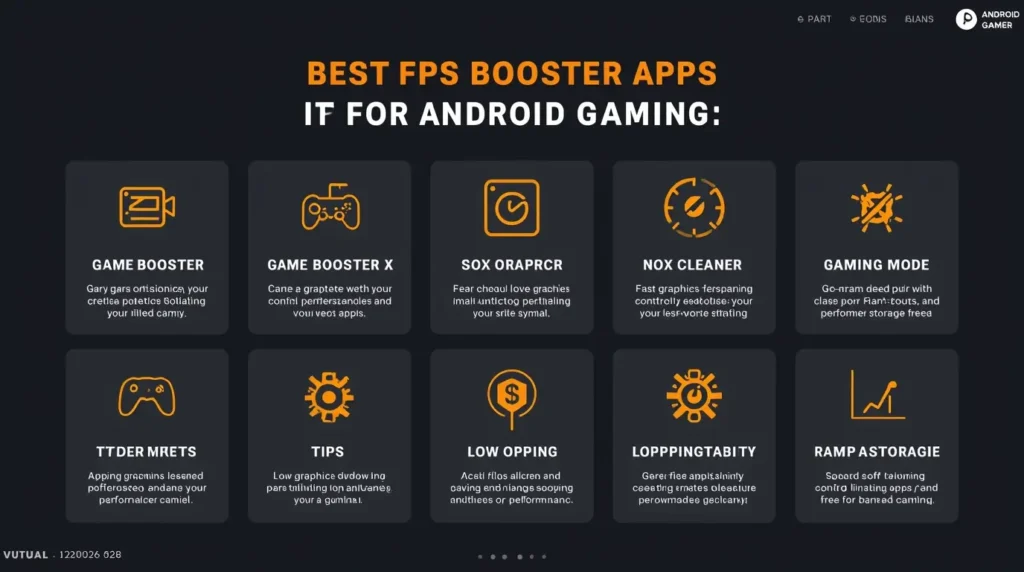
Best FPS Booster Apps for Android Gaming

Low FPS is one of the biggest problems in mobile gaming. It causes lag, stuttering, and slow response, making it harder to compete in games like PUBG Mobile, Free Fire, and COD Mobile.

The good news is that FPS booster apps can help improve performance by optimizing your device, freeing up RAM, and stabilizing gameplay. In this guide, you will discover the best FPS booster apps for Android gaming in 2026.


Why FPS Drops on Android Devices

Before using booster apps, it is important to understand why FPS drops:

  • Limited RAM and weak CPU
  • Background apps consuming resources
  • Overheating
  • High graphics settings
  • Poor system optimization

FPS booster apps work by reducing system load and improving efficiency.


Best FPS Booster Apps for Android Gaming


1. Game Booster (Built-in Tools)

Many Android phones come with built-in FPS optimization tools.

For example, Samsung Game Booster helps improve performance, manage background apps, and stabilize gameplay.

  • No installation required
  • Optimized for your device
  • Best performance results

2. Game Booster X

A lightweight app designed to improve FPS on low-end devices.

  • One-tap boost
  • RAM cleaning
  • Background process control

3. GFX Tool (For Supported Games)

GFX tools allow advanced control over graphics settings.

  • Lower resolution
  • Unlock higher FPS
  • Disable heavy effects

⚠️ Use only trusted versions and supported games.


4. Nox Cleaner

A powerful cleaning app that helps improve performance.

  • Clears junk files
  • Boosts RAM
  • Improves system speed

5. CCleaner

One of the most trusted optimization apps.

  • Frees storage
  • Clears cache
  • Improves responsiveness

6. Gaming Mode Apps

Gaming Mode Apps

Gaming mode apps optimize system performance and reduce interruptions.

According to Android Help, limiting background activity can improve app performance, including gaming.


Best Settings to Combine With FPS Booster Apps

Using apps alone is not enough. Combine them with proper settings:

  • Graphics: Low or Smooth
  • Frame Rate: High or Max (stable only)
  • Shadows: Off
  • Effects: Low

This ensures maximum FPS improvement.


Best Tips for Higher FPS

1. Use One Booster App Only

Using multiple apps can reduce performance instead of improving it.


2. Close Apps Before Boosting

Manual cleaning + booster app gives better results.


3. Prevent Overheating

  • Do not play while charging
  • Take breaks
  • Keep your phone cool

4. Keep Storage Free

Low storage can reduce FPS and cause stuttering.


Common Mistakes to Avoid

  • Installing too many booster apps
  • Using untrusted tools
  • Ignoring overheating
  • Relying only on apps without optimizing settings

Extra Tip

The biggest FPS improvement usually comes from lowering graphics settings, not from apps. Always prioritize stability over visuals.


Conclusion

FPS booster apps can help improve gaming performance on Android, especially on low-end devices. However, they work best when combined with proper settings and good device management.
Choose trusted apps, optimize your system, and focus on stable performance for the best gaming experience.

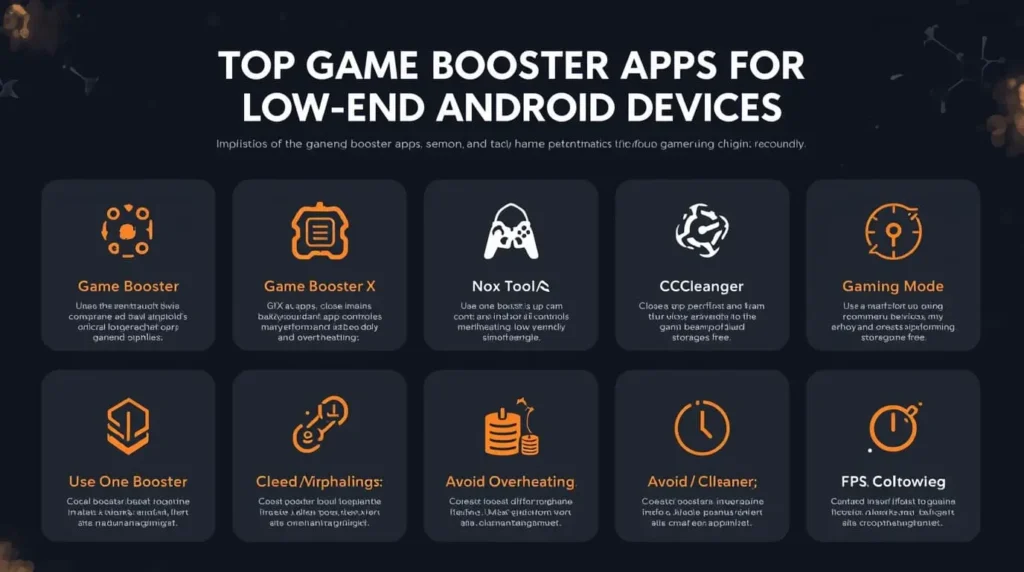
Top Game Booster Apps for Low-End Android Devices

If you are using a low-end Android phone, gaming can often feel slow and frustrating بسبب lag و frame drops. Many games require more power than your device can handle, which leads to poor performance.

The good news is that game booster apps can help optimize your phone, free up RAM, and improve gaming performance. In this guide, you will discover the top game booster apps for low-end Android devices in 2026.


Why Low-End Devices Need Game Booster Apps

Low-end phones have limited resources, which makes gaming difficult.

Common issues include:

  • Low RAM
  • Background apps consuming CPU
  • Overheating
  • Poor system optimization

Game booster apps help by:

  • Freeing memory
  • Closing background apps
  • Optimizing system performance

Top Game Booster Apps for Low-End Android

Game Booster Apps for Low-End Android

1. Game Booster (Built-in / Samsung Game Booster)

Many Android phones come with built-in game boosters.

For example, Samsung Game Booster helps manage performance, control background apps, and improve gaming stability.

  • No extra installation needed
  • Optimized for device hardware
  • Best for supported phones

2. Game Booster X

A lightweight app designed for low-end devices.

  • One-tap boost
  • Clears RAM instantly
  • Simple interface

3. GFX Tool (For Supported Games)

Allows advanced control over graphics settings.

  • Reduce resolution
  • Unlock FPS
  • Improve performance

⚠️ Use only with supported games and trusted versions.


4. Nox Cleaner

A popular cleaning and optimization tool.

  • Removes junk files
  • Boosts RAM
  • Improves speed

5. CCleaner

One of the most trusted cleaning apps.

  • Clears cache
  • Frees storage
  • Improves device responsiveness

6. Gaming Mode Apps

Some third-party apps provide gaming mode features like blocking notifications and optimizing performance.

According to Android Help, limiting background activity and system processes can improve app performance, including games.


Best Settings to Use With Game Booster Apps

Using booster apps alone is not enough. Combine them with proper settings:

  • Graphics: Low or Smooth
  • Frame Rate: Medium or High (stable only)
  • Shadows: Off
  • Effects: Low

This ensures maximum performance improvement.


Best Tips for Better Results

1. Use Only One Booster App

Using multiple apps can cause conflicts and reduce performance.


2. Close Apps Before Boosting

Manual cleaning + booster app = better results.


3. Avoid Overheating

  • Do not play while charging
  • Take breaks
  • Keep your phone cool

4. Keep Storage Free

Low storage reduces performance significantly.


Common Mistakes to Avoid

  • Installing too many booster apps
  • Using untrusted tools
  • Relying only on apps without adjusting game settings
  • Ignoring overheating issues

Extra Tip

Game booster apps help, but the biggest improvement always comes from lowering graphics settings. Always prioritize stability over visuals.


Conclusion

Game booster apps can significantly improve gaming performance on low-end Android devices when used correctly.

Choose a trusted app, combine it with proper settings, and keep your device optimized for the best results. Smooth gameplay is possible—even on weak phones.

Best Apps to Reduce Lag While Gaming on Android (2026)

Lag is one of the biggest problems mobile gamers face, especially on low-end devices. Even if your game is optimized, background processes and system limitations can still cause frame drops, stuttering, and delayed response.

The good news is that there are several apps designed to reduce lag and improve gaming performance on Android. In this guide, you will discover the best apps to reduce lag while gaming in 2026.


Why Games Lag on Android Devices

Before using any app, it is important to understand why lag happens:

  • Limited RAM and weak CPU
  • Background apps consuming resources
  • Overheating
  • Poor system optimization
  • High graphics settings

Lag reduction apps help by freeing resources and optimizing performance.


Best Apps to Reduce Lag While Gaming


1. Game Booster (Built-in or Third-Party)

Game Booster apps optimize your device automatically.

  • Clears RAM
  • Blocks background apps
  • Improves performance

For example, Samsung Game Booster provides built-in performance optimization on supported devices.


2. GFX Tool (For Supported Games)

GFX tools allow you to customize graphics settings beyond default options.

  • Lower resolution
  • Unlock FPS options
  • Reduce lag

⚠️ Use only trusted versions and compatible games.


3. CCleaner

A popular cleaning app that helps free storage and RAM.

  • Clears cache
  • Removes junk files
  • Improves device speed

4. Game Booster X

A lightweight app designed to improve gaming performance.

  • One-tap optimization
  • RAM cleaning
  • Background control

5. Nox Cleaner

A simple app to clean and optimize your device.

  • Removes junk files
  • Boosts RAM
  • Reduces lag

6. Gaming Mode Apps

Many Android devices come with built-in gaming modes that block notifications and optimize performance.

According to Android Help, managing system activity and background processes can directly affect app performance, including games.


Best Settings to Use With These Apps

Apps alone are not enough. Combine them with proper settings:

  • Graphics: Low or Smooth
  • Frame Rate: High (stable only)
  • Shadows: Off
  • Effects: Low

This ensures maximum performance.


Best Tips for Maximum Performance

1. Use One Booster App Only

Using multiple booster apps at the same time can cause conflicts.


2. Close Apps Manually

Even with booster apps, manually closing apps improves results.


3. Avoid Overheating

  • Do not play while charging
  • Take breaks
  • Keep your phone cool

4. Keep Storage Free

Low storage can reduce performance.


Common Mistakes to Avoid

  • Installing too many booster apps
  • Using untrusted GFX tools
  • Relying only on apps without optimizing settings
  • Ignoring overheating issues

Extra Tip

Not all lag can be fixed with apps. If your device is very weak, lowering graphics settings will always have a bigger impact than any booster app.


Conclusion

Lag reduction apps can help improve gaming performance, but they work best when combined with proper settings and device optimization.

Use trusted apps, avoid overloading your device, and focus on stability to achieve smoother gameplay in 2026.