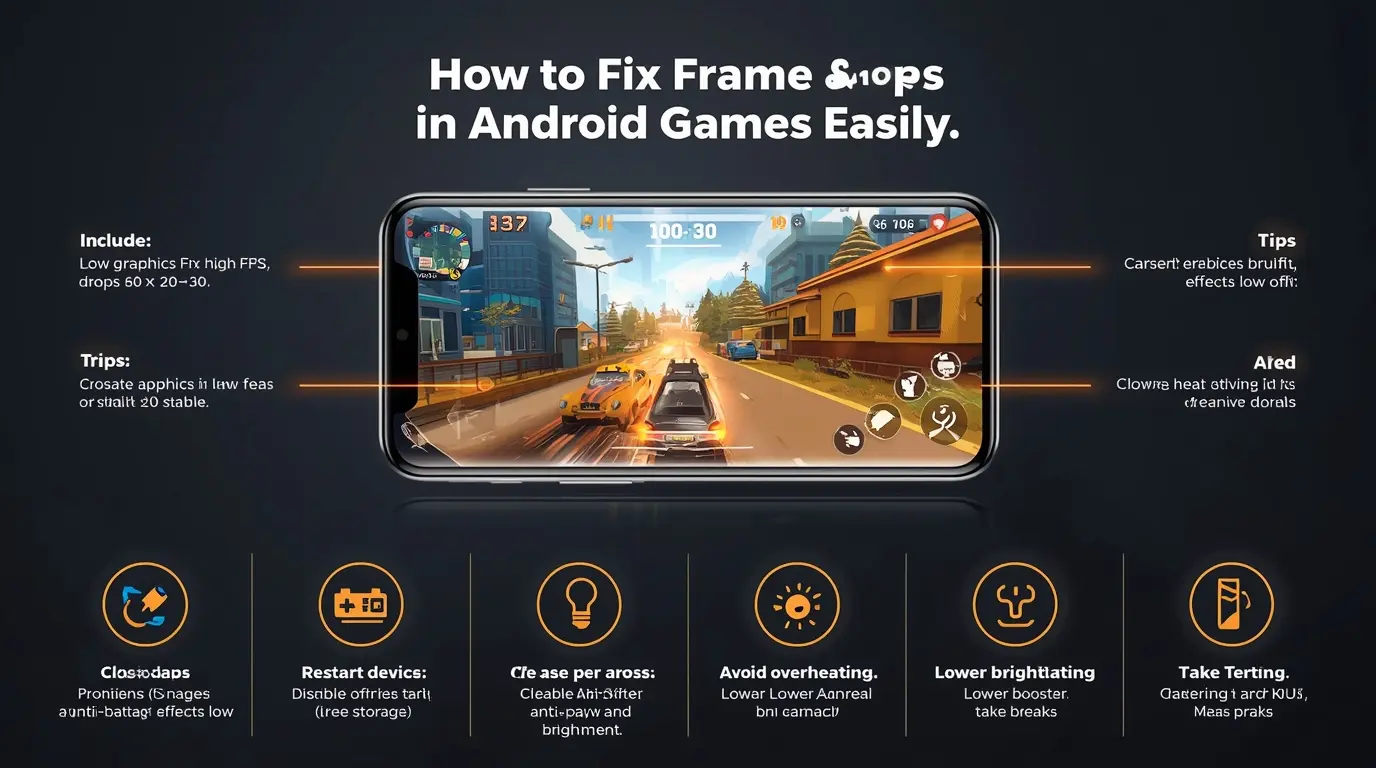
Frame drops are one of the most annoying issues in mobile gaming. Even if your game runs smoothly at times, sudden drops in FPS can ruin your aim, delay your reactions, and make gameplay inconsistent.
The good news is that most frame drop issues on Android can be fixed بسهولة with a few simple adjustments.
What Are Frame Drops?
Frame drops happen when your game cannot maintain a stable FPS (frames per second).
For example:
- Game runs at 60 FPS → smooth
- Suddenly drops to 20–30 FPS → lag and stutter
This usually happens when your device is overloaded or overheated.
Main Causes of Frame Drops
- High graphics settings
- Overheating
- Background apps consuming RAM
- Low storage space
- Battery saver limiting performance
- Poor optimization
Fixing frame drops is about reducing load and stabilizing performance.
1. Lower Graphics Settings
The first and most important step.
Recommended:
- Graphics: Low or Smooth
- Frame Rate: High (if stable)
- Shadows: Off
- Anti-Aliasing: Off
- Effects: Low
Lower graphics reduce GPU pressure and help maintain stable FPS.
2. Close Background Apps
Background apps use RAM and CPU power.
Before playing:
- Close all apps
- Clear recent apps
This gives your game maximum resources.
3. Turn Off Battery Saver
Battery Saver can reduce performance. According to Android Help, this mode limits system activity and may affect app performance, including games.
Turning it off allows your device to run at full performance.
4. Restart Your Phone
Restarting:
- Clears memory
- Stops hidden processes
- Improves system stability
Do this before gaming sessions.
5. Prevent Overheating
Heat is one of the biggest causes of frame drops.
To avoid overheating:
- Do not play while charging
- Play in a cool environment
- Take breaks
When your phone overheats, it reduces performance automatically.
6. Free Up Storage Space
Low storage slows your phone and causes stuttering.
Tips:
- Delete unused apps
- Clear cache
- Remove large files
Keep enough free space for smooth performance.
7. Use Game Booster
If your phone supports it, use gaming tools.
For example, Samsung Game Booster helps optimize performance and control background activity during gameplay.
8. Reduce Screen Brightness
High brightness increases heat and battery usage. Lowering it slightly helps maintain performance.
9. Keep Your System Updated
Updates improve performance and fix bugs. Always keep your Android system and games updated.
10. Avoid Playing for Too Long
Long sessions increase heat and reduce performance over time. Take short breaks between matches.
Common Mistakes to Avoid
- Using high graphics on weak devices
- Playing while charging
- Keeping many apps open
- Ignoring overheating
- Not optimizing settings
Extra Tip
If you experience crashes or performance issues, you can check official support pages like PUBG MOBILE Support for troubleshooting and updates.
Conclusion
Fixing frame drops in Android games is simple when you focus on the right things: lower graphics, free resources, prevent overheating, and optimize your device.
With these steps, you can achieve smoother gameplay and more stable FPS—even on low-end phones.