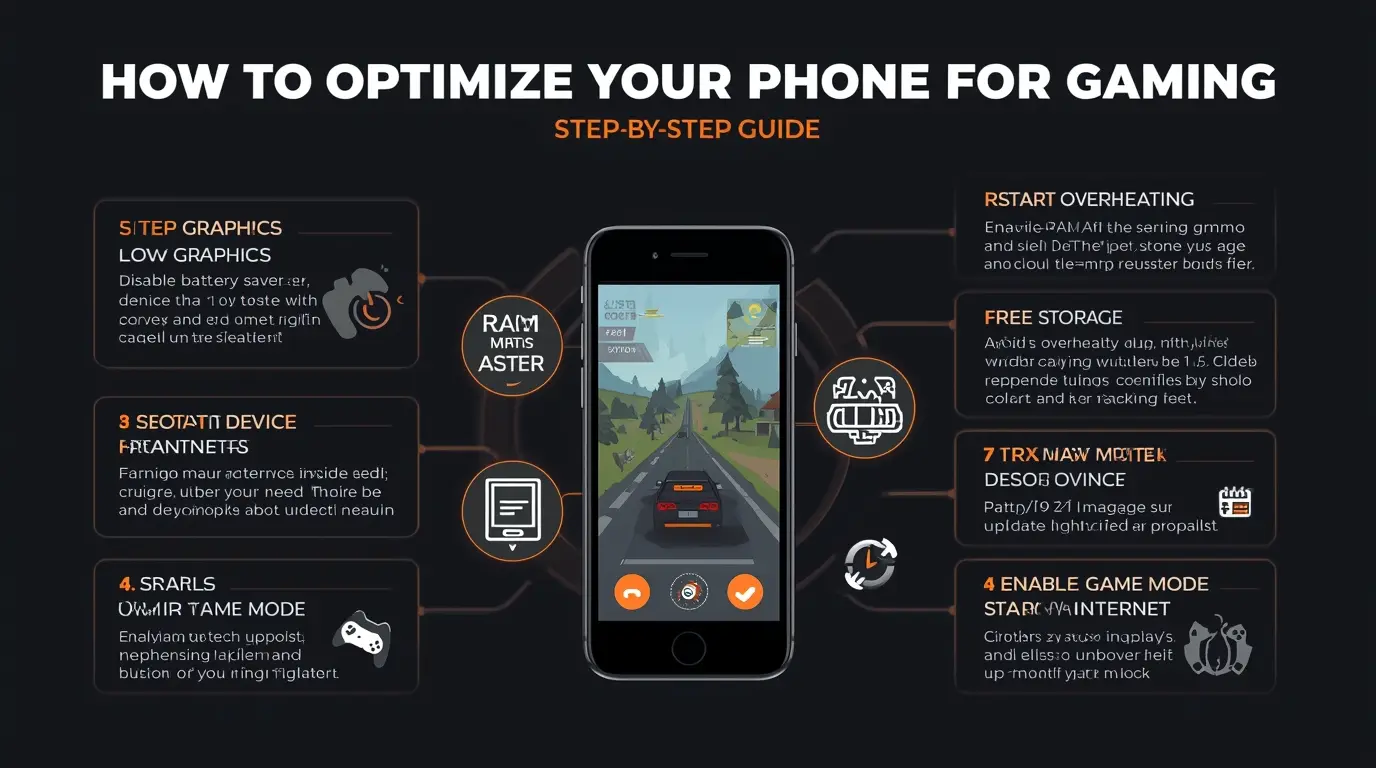
If your phone lags, overheats, or struggles to run games smoothly, the issue is usually not the game—it is your device setup. Proper optimization can significantly improve performance, increase FPS, and reduce lag, even on low-end phones.
In this step-by-step guide, you will learn how to optimize your phone for gaming and get the best possible performance.
Why Phone Optimization Matters for Gaming
Mobile games require stable performance, fast response, and efficient resource usage. Without optimization, you may face:
- Frame drops (low FPS)
- Lag and stuttering
- Overheating
- Delayed touch response
Optimization helps your phone focus its power on the game instead of background processes.
Step 1: Lower In-Game Graphics Settings
Start by reducing graphics inside the game.
Recommended Settings:
- Graphics: Low or Smooth
- Frame Rate: High (if stable)
- Shadows: Off
- Anti-Aliasing: Off
- Effects: Low
This reduces GPU load and improves stability.
Step 2: Close Background Apps
Background apps consume RAM and CPU.
Before playing:
- Close all unused apps
- Clear recent apps
This frees up system resources for gaming.
Step 3: Turn Off Battery Saver
Battery Saver limits device performance. According to Android Help, this mode reduces system activity and may affect app performance, including games.
Turning it off allows your phone to run at full capacity.
Step 4: Restart Your Phone
Restarting your device:
- Clears temporary memory
- Stops hidden processes
- Improves responsiveness
Do this before long gaming sessions.
Step 5: Free Up Storage Space
Low storage can slow down your phone.
What to do:
- Delete unused apps
- Clear cache
- Remove large files
Keeping enough free space improves performance.
Step 6: Enable Game Mode or Game Booster
Many phones include built-in gaming tools.
For example, Samsung Game Booster helps optimize performance, manage background apps, and improve stability during gameplay.
Step 7: Prevent Overheating
Heat reduces performance and causes lag.
To avoid overheating:
- Do not play while charging
- Play in a cool environment
- Take breaks between sessions
When your phone gets hot, it automatically reduces performance.
Step 8: Lower Screen Brightness
High brightness increases heat and battery usage. Keep it at a moderate level for better performance.
Step 9: Update Your System and Games
Updates often include:
- Performance improvements
- Bug fixes
- Better optimization
Always keep your Android system and games updated.
Step 10: Use Stable Internet Connection
For online games:
- Use Wi-Fi instead of mobile data
- Avoid crowded networks
- Stay close to the router
Network issues can feel like performance lag.
Common Mistakes to Avoid
- Playing with high graphics on weak devices
- Keeping many apps running
- Ignoring overheating
- Playing while charging
- Not updating the system
Extra Tip
If you experience crashes, login problems, or performance issues, you can visit official support pages like PUBG MOBILE Support for troubleshooting and updates.
Conclusion
Optimizing your phone for gaming is simple but very effective. By lowering graphics, freeing system resources, preventing overheating, and using built-in tools, you can dramatically improve your gaming experience.
The key is to keep your device clean, cool, and focused on performance.